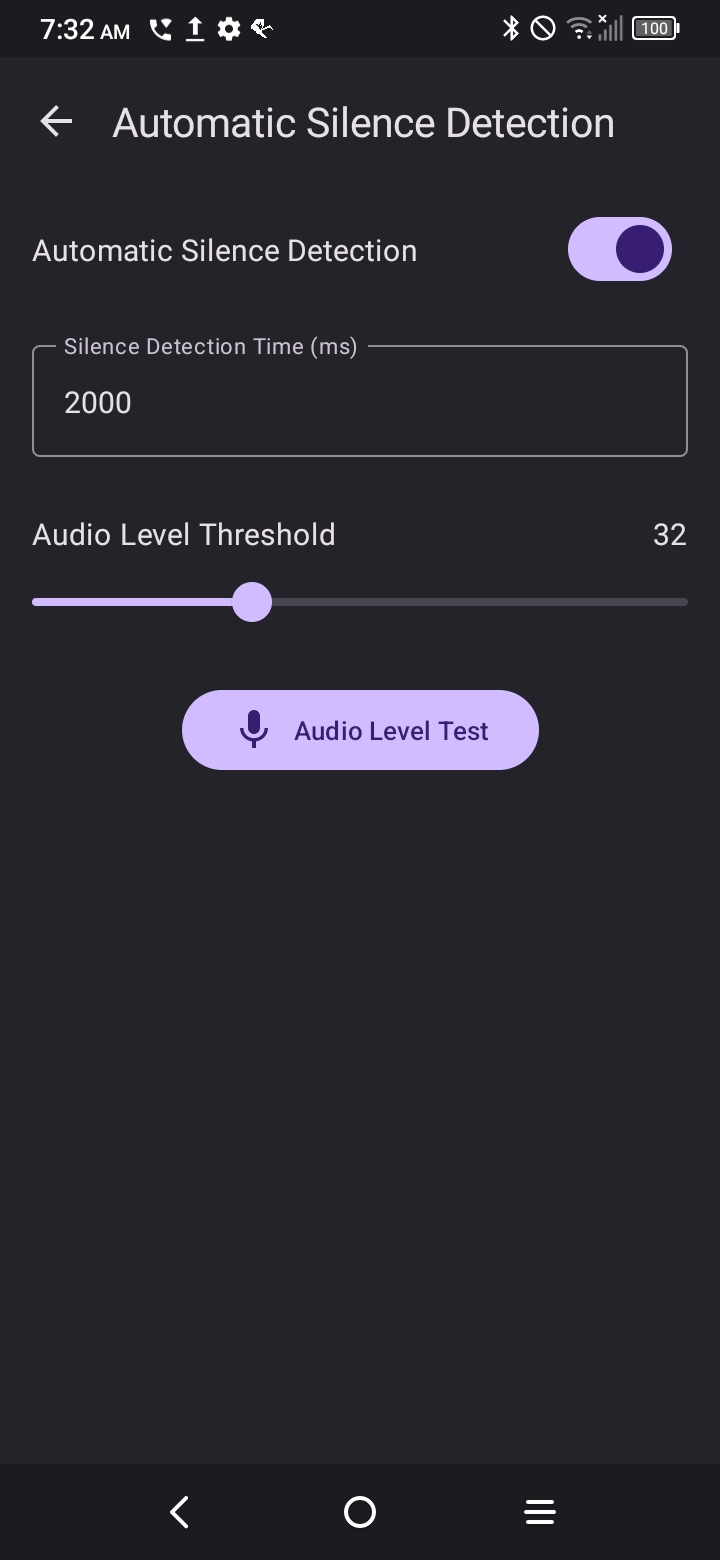
Oops, I copied the same thing twice… I actually got it mostly working, the only thing left is the short listening time. If I hesitate a split second, it stops listening, is there any way to extend that?
,{"time":"2023-02-13T14:52:46.711","severity":"Debug","tag":"DialogManagerService","message":"onAction WakeWordDetected from Local wakeWord: COMPUTER","throwable":null}
,{"time":"2023-02-13T14:52:46.714","severity":"Debug","tag":"IndicationService","message":"onWakeWordDetected","throwable":null}
,{"time":"2023-02-13T14:52:46.711","severity":"Debug","tag":"DialogManagerService","message":"WakeWordDetected from Local wakeWord: COMPUTER","throwable":null}
,{"time":"2023-02-13T14:52:46.716","severity":"Debug","tag":"DialogManagerService","message":"onAction StartSession from Local","throwable":null}
,{"time":"2023-02-13T14:52:46.717","severity":"Debug","tag":"DialogManagerService","message":"StartSession from Local","throwable":null}
,{"time":"2023-02-13T14:52:46.717","severity":"Debug","tag":"WakeWordService","message":"stopDetection","throwable":null}
,{"time":"2023-02-13T14:52:46.707","severity":"Debug","tag":"NativeLocalWakeWordService","message":"invoke - keyword detected","throwable":null}
,{"time":"2023-02-13T14:52:46.708","severity":"Debug","tag":"WakeWordService","message":"onKeywordDetected COMPUTER","throwable":null}
,{"time":"2023-02-13T14:52:46.734","severity":"Debug","tag":"MqttService","message":"onMessageReceived id 0 hermes/hotword/COMPUTER/detected","throwable":null}
,{"time":"2023-02-13T14:52:46.735","severity":"Debug","tag":"MqttService","message":"regexTopic hermes/hotword/COMPUTER/detected","throwable":null}
,{"time":"2023-02-13T14:52:46.735","severity":"Debug","tag":"DialogManagerService","message":"onAction WakeWordDetected from Mqtt wakeWord: COMPUTER","throwable":null}
,{"time":"2023-02-13T14:52:46.735","severity":"Debug","tag":"DialogManagerService","message":"WakeWordDetected from Mqtt wakeWord: COMPUTER","throwable":null}
,{"time":"2023-02-13T14:52:46.735","severity":"Debug","tag":"IndicationService","message":"onWakeWordDetected","throwable":null}
,{"time":"2023-02-13T14:52:46.736","severity":"Debug","tag":"DialogManagerService","message":"onAction StartSession from Local","throwable":null}
,{"time":"2023-02-13T14:52:46.736","severity":"Debug","tag":"DialogManagerService","message":"StartSession from Local","throwable":null}
,{"time":"2023-02-13T14:52:46.736","severity":"Debug","tag":"WakeWordService","message":"stopDetection","throwable":null}
,{"time":"2023-02-13T14:52:46.739","severity":"Debug","tag":"MqttService","message":"onMessageReceived id 0 hermes/hotword/toggleOff","throwable":null}
,{"time":"2023-02-13T14:52:46.740","severity":"Debug","tag":"MqttService","message":"regexTopic hermes/hotword/toggleOff","throwable":null}
,{"time":"2023-02-13T14:52:46.740","severity":"Debug","tag":"MqttService","message":"compareTopic hermes/hotword/toggleOff","throwable":null}
,{"time":"2023-02-13T14:52:46.740","severity":"Debug","tag":"AppSettingsService","message":"hotWordToggle value: false","throwable":null}
,{"time":"2023-02-13T14:52:46.757","severity":"Debug","tag":"MqttService","message":"onMessageReceived id 0 hermes/audioServer/mobile/playBytes/b4db9dd6-7f96-402b-9695-4b2d93699b0a","throwable":null}
,{"time":"2023-02-13T14:52:46.757","severity":"Debug","tag":"MqttService","message":"regexTopic hermes/audioServer/mobile/playBytes/b4db9dd6-7f96-402b-9695-4b2d93699b0a","throwable":null}
,{"time":"2023-02-13T14:52:46.758","severity":"Debug","tag":"DialogManagerService","message":"onAction PlayAudio from Mqtt size: 83948","throwable":null}
,{"time":"2023-02-13T14:52:46.758","severity":"Debug","tag":"IndicationService","message":"onPlayAudio","throwable":null}
,{"time":"2023-02-13T14:52:46.758","severity":"Debug","tag":"LocalAudioService","message":"stop","throwable":null}
,{"time":"2023-02-13T14:52:46.758","severity":"Debug","tag":"AudioPlayingService","message":"playAudio dataSize: 83948","throwable":null}
,{"time":"2023-02-13T14:52:46.759","severity":"Debug","tag":"LocalAudioService","message":"playAudio 83948","throwable":null}
,{"time":"2023-02-13T14:52:46.806","severity":"Debug","tag":"DialogManagerService","message":"onAction SessionStarted from Local","throwable":null}
,{"time":"2023-02-13T14:52:46.807","severity":"Debug","tag":"DialogManagerService","message":"SessionStarted from Local","throwable":null}
,{"time":"2023-02-13T14:52:46.808","severity":"Debug","tag":"DialogManagerService","message":"StartListening from Local sendAudioCaptured: false","throwable":null}
,{"time":"2023-02-13T14:52:46.808","severity":"Debug","tag":"DialogManagerService","message":"onAction StartListening from Local sendAudioCaptured: false","throwable":null}
,{"time":"2023-02-13T14:52:46.809","severity":"Debug","tag":"WakeWordService","message":"stopDetection","throwable":null}
,{"time":"2023-02-13T14:52:46.809","severity":"Debug","tag":"IndicationService","message":"onListening","throwable":null}
,{"time":"2023-02-13T14:52:46.809","severity":"Debug","tag":"SpeechToTextService","message":"startSpeechToText sessionId: f16625c3-0b3c-441e-b4b6-75da54c5590e fromMqtt false","throwable":null}
,{"time":"2023-02-13T14:52:46.810","severity":"Debug","tag":"RecordingService","message":"startRecording","throwable":null}
,{"time":"2023-02-13T14:52:46.822","severity":"Debug","tag":"MqttService","message":"onMessageReceived id 0 hermes/dialogueManager/sessionStarted","throwable":null}
,{"time":"2023-02-13T14:52:46.823","severity":"Debug","tag":"MqttService","message":"regexTopic hermes/dialogueManager/sessionStarted","throwable":null}
,{"time":"2023-02-13T14:52:46.824","severity":"Debug","tag":"MqttService","message":"compareTopic hermes/dialogueManager/sessionStarted","throwable":null}
,{"time":"2023-02-13T14:52:46.825","severity":"Debug","tag":"DialogManagerService","message":"onAction SessionStarted from Mqtt","throwable":null}
,{"time":"2023-02-13T14:52:46.825","severity":"Debug","tag":"SpeechToTextService","message":"startSpeechToText sessionId: f16625c3-0b3c-441e-b4b6-75da54c5590e fromMqtt false","throwable":null}
,{"time":"2023-02-13T14:52:46.825","severity":"Debug","tag":"DialogManagerService","message":"onAction StartListening from Local sendAudioCaptured: false","throwable":null}
,{"time":"2023-02-13T14:52:46.825","severity":"Debug","tag":"DialogManagerService","message":"SessionStarted from Mqtt","throwable":null}
,{"time":"2023-02-13T14:52:46.826","severity":"Debug","tag":"MqttService","message":"onMessageReceived id 0 hermes/asr/startListening","throwable":null}
,{"time":"2023-02-13T14:52:46.826","severity":"Debug","tag":"DialogManagerService","message":"StartListening from Local sendAudioCaptured: false","throwable":null}
,{"time":"2023-02-13T14:52:46.826","severity":"Debug","tag":"WakeWordService","message":"stopDetection","throwable":null}
,{"time":"2023-02-13T14:52:46.826","severity":"Debug","tag":"MqttService","message":"regexTopic hermes/asr/startListening","throwable":null}
,{"time":"2023-02-13T14:52:46.826","severity":"Debug","tag":"MqttService","message":"compareTopic hermes/asr/startListening","throwable":null}
,{"time":"2023-02-13T14:52:46.826","severity":"Debug","tag":"IndicationService","message":"onListening","throwable":null}
,{"time":"2023-02-13T14:52:46.826","severity":"Debug","tag":"DialogManagerService","message":"onAction StartListening from Mqtt sendAudioCaptured: false","throwable":null}
,{"time":"2023-02-13T14:52:46.827","severity":"Debug","tag":"DialogManagerService","message":"StartListening from Mqtt sendAudioCaptured: false","throwable":null}
,{"time":"2023-02-13T14:52:46.827","severity":"Debug","tag":"SpeechToTextService","message":"startSpeechToText sessionId: f16625c3-0b3c-441e-b4b6-75da54c5590e fromMqtt true","throwable":null}
,{"time":"2023-02-13T14:52:46.827","severity":"Debug","tag":"WakeWordService","message":"stopDetection","throwable":null}
,{"time":"2023-02-13T14:52:46.827","severity":"Debug","tag":"IndicationService","message":"onListening","throwable":null}
,{"time":"2023-02-13T14:52:47.624","severity":"Debug","tag":"LocalAudioService","message":"onFinished","throwable":null}
,{"time":"2023-02-13T14:52:47.625","severity":"Debug","tag":"DialogManagerService","message":"onAction PlayFinished from Local","throwable":null}
,{"time":"2023-02-13T14:52:47.625","severity":"Debug","tag":"IndicationService","message":"onListening","throwable":null}
,{"time":"2023-02-13T14:52:47.641","severity":"Debug","tag":"MqttService","message":"onMessageReceived id 0 hermes/audioServer/mobile/playFinished","throwable":null}
,{"time":"2023-02-13T14:52:47.642","severity":"Debug","tag":"MqttService","message":"regexTopic hermes/audioServer/mobile/playFinished","throwable":null}
,{"time":"2023-02-13T14:52:47.643","severity":"Debug","tag":"MqttService","message":"compareTopic hermes/audioServer/mobile/playFinished","throwable":null}
,{"time":"2023-02-13T14:52:47.644","severity":"Debug","tag":"IndicationService","message":"onListening","throwable":null}
,{"time":"2023-02-13T14:52:47.644","severity":"Debug","tag":"DialogManagerService","message":"onAction PlayFinished from Mqtt","throwable":null}
,{"time":"2023-02-13T14:52:47.948","severity":"Debug","tag":"MqttService","message":"regexTopic hermes/hotword/toggleOn","throwable":null}
,{"time":"2023-02-13T14:52:47.949","severity":"Debug","tag":"MqttService","message":"compareTopic hermes/hotword/toggleOn","throwable":null}
,{"time":"2023-02-13T14:52:47.950","severity":"Debug","tag":"AppSettingsService","message":"hotWordToggle value: true","throwable":null}
,{"time":"2023-02-13T14:52:47.948","severity":"Debug","tag":"MqttService","message":"onMessageReceived id 0 hermes/hotword/toggleOn","throwable":null}
,{"time":"2023-02-13T14:52:47.959","severity":"Debug","tag":"AppSettingsService","message":"hotWordToggle value: false","throwable":null}
,{"time":"2023-02-13T14:52:47.959","severity":"Debug","tag":"MqttService","message":"onMessageReceived id 0 hermes/dialogueManager/sessionStarted","throwable":null}
,{"time":"2023-02-13T14:52:47.960","severity":"Debug","tag":"MqttService","message":"regexTopic hermes/dialogueManager/sessionStarted","throwable":null}
,{"time":"2023-02-13T14:52:47.960","severity":"Debug","tag":"MqttService","message":"compareTopic hermes/dialogueManager/sessionStarted","throwable":null}
,{"time":"2023-02-13T14:52:47.960","severity":"Debug","tag":"DialogManagerService","message":"onAction SessionStarted from Mqtt","throwable":null}
,{"time":"2023-02-13T14:52:47.960","severity":"Debug","tag":"DialogManagerService","message":"SessionStarted from Mqtt","throwable":null}
,{"time":"2023-02-13T14:52:47.960","severity":"Debug","tag":"DialogManagerService","message":"onAction StartListening from Local sendAudioCaptured: false","throwable":null}
,{"time":"2023-02-13T14:52:47.961","severity":"Debug","tag":"DialogManagerService","message":"StartListening from Local sendAudioCaptured: false","throwable":null}
,{"time":"2023-02-13T14:52:47.961","severity":"Debug","tag":"WakeWordService","message":"stopDetection","throwable":null}
,{"time":"2023-02-13T14:52:47.961","severity":"Debug","tag":"IndicationService","message":"onListening","throwable":null}
,{"time":"2023-02-13T14:52:47.961","severity":"Debug","tag":"SpeechToTextService","message":"startSpeechToText sessionId: mobile-COMPUTER-b6bd6e42-3a29-4847-aa7d-db2bff0434b2 fromMqtt false","throwable":null}
,{"time":"2023-02-13T14:52:47.961","severity":"Debug","tag":"SpeechToTextService","message":"startSpeechToText sessionId: mobile-COMPUTER-b6bd6e42-3a29-4847-aa7d-db2bff0434b2 fromMqtt true","throwable":null}
,{"time":"2023-02-13T14:52:47.962","severity":"Debug","tag":"MqttService","message":"onMessageReceived id 0 hermes/hotword/toggleOff","throwable":null}
,{"time":"2023-02-13T14:52:47.962","severity":"Debug","tag":"MqttService","message":"regexTopic hermes/hotword/toggleOff","throwable":null}
,{"time":"2023-02-13T14:52:47.962","severity":"Debug","tag":"MqttService","message":"compareTopic hermes/hotword/toggleOff","throwable":null}
,{"time":"2023-02-13T14:52:47.962","severity":"Debug","tag":"MqttService","message":"onMessageReceived id 0 hermes/asr/startListening","throwable":null}
,{"time":"2023-02-13T14:52:47.962","severity":"Debug","tag":"MqttService","message":"regexTopic hermes/asr/startListening","throwable":null}
,{"time":"2023-02-13T14:52:47.963","severity":"Debug","tag":"MqttService","message":"compareTopic hermes/asr/startListening","throwable":null}
,{"time":"2023-02-13T14:52:47.963","severity":"Debug","tag":"DialogManagerService","message":"onAction StartListening from Mqtt sendAudioCaptured: true","throwable":null}
,{"time":"2023-02-13T14:52:47.963","severity":"Debug","tag":"DialogManagerService","message":"StartListening from Mqtt sendAudioCaptured: true","throwable":null}
,{"time":"2023-02-13T14:52:47.963","severity":"Debug","tag":"WakeWordService","message":"stopDetection","throwable":null}
,{"time":"2023-02-13T14:52:47.963","severity":"Debug","tag":"IndicationService","message":"onListening","throwable":null}
,{"time":"2023-02-13T14:52:49.025","severity":"Debug","tag":"MqttService","message":"onMessageReceived id 0 hermes/asr/textCaptured","throwable":null}
,{"time":"2023-02-13T14:52:49.026","severity":"Debug","tag":"MqttService","message":"regexTopic hermes/asr/textCaptured","throwable":null}
,{"time":"2023-02-13T14:52:49.027","severity":"Debug","tag":"MqttService","message":"compareTopic hermes/asr/textCaptured","throwable":null}
,{"time":"2023-02-13T14:52:49.030","severity":"Debug","tag":"DialogManagerService","message":"AsrTextCaptured from Mqtt text: ","throwable":null}
,{"time":"2023-02-13T14:52:49.031","severity":"Debug","tag":"IndicationService","message":"onRecognizingIntent","throwable":null}
,{"time":"2023-02-13T14:52:49.031","severity":"Debug","tag":"SpeechToTextService","message":"endSpeechToText sessionId: mobile-COMPUTER-b6bd6e42-3a29-4847-aa7d-db2bff0434b2 fromMqtt true","throwable":null}
,{"time":"2023-02-13T14:52:49.031","severity":"Debug","tag":"RecordingService","message":"stopRecording","throwable":null}
,{"time":"2023-02-13T14:52:49.030","severity":"Debug","tag":"DialogManagerService","message":"onAction AsrTextCaptured from Mqtt text: ","throwable":null}
,{"time":"2023-02-13T14:52:49.040","severity":"Debug","tag":"IndicationService","message":"onRecognizingIntent","throwable":null}
,{"time":"2023-02-13T14:52:49.040","severity":"Debug","tag":"MqttService","message":"onMessageReceived id 0 hermes/asr/textCaptured","throwable":null}
,{"time":"2023-02-13T14:52:49.041","severity":"Debug","tag":"MqttService","message":"regexTopic hermes/asr/textCaptured","throwable":null}
,{"time":"2023-02-13T14:52:49.041","severity":"Debug","tag":"MqttService","message":"compareTopic hermes/asr/textCaptured","throwable":null}
,{"time":"2023-02-13T14:52:49.041","severity":"Debug","tag":"DialogManagerService","message":"onAction AsrTextCaptured from Mqtt text: ","throwable":null}
,{"time":"2023-02-13T14:52:49.042","severity":"Debug","tag":"DialogManagerService","message":"AsrTextCaptured from Mqtt text: ","throwable":null}
,{"time":"2023-02-13T14:52:49.043","severity":"Debug","tag":"MqttService","message":"onMessageReceived id 0 hermes/hotword/toggleOff","throwable":null}
,{"time":"2023-02-13T14:52:49.044","severity":"Debug","tag":"MqttService","message":"regexTopic hermes/hotword/toggleOff","throwable":null}
,{"time":"2023-02-13T14:52:49.044","severity":"Debug","tag":"AppSettingsService","message":"hotWordToggle value: false","throwable":null}
,{"time":"2023-02-13T14:52:49.044","severity":"Debug","tag":"MqttService","message":"compareTopic hermes/hotword/toggleOff","throwable":null}
,{"time":"2023-02-13T14:52:49.093","severity":"Debug","tag":"MqttService","message":"onMessageReceived id 0 hermes/audioServer/mobile/playBytes/92c55f22-2a45-4724-b985-1c96d7c5f3c3","throwable":null}
,{"time":"2023-02-13T14:52:49.094","severity":"Debug","tag":"MqttService","message":"regexTopic hermes/audioServer/mobile/playBytes/92c55f22-2a45-4724-b985-1c96d7c5f3c3","throwable":null}
,{"time":"2023-02-13T14:52:49.094","severity":"Debug","tag":"DialogManagerService","message":"onAction PlayAudio from Mqtt size: 119908","throwable":null}
,{"time":"2023-02-13T14:52:49.095","severity":"Debug","tag":"IndicationService","message":"onPlayAudio","throwable":null}
,{"time":"2023-02-13T14:52:49.095","severity":"Debug","tag":"LocalAudioService","message":"stop","throwable":null}
,{"time":"2023-02-13T14:52:49.095","severity":"Debug","tag":"AudioPlayingService","message":"playAudio dataSize: 119908","throwable":null}
,{"time":"2023-02-13T14:52:49.095","severity":"Debug","tag":"LocalAudioService","message":"playAudio 119908","throwable":null}
,{"time":"2023-02-13T14:52:50.087","severity":"Debug","tag":"LocalAudioService","message":"onFinished","throwable":null}
,{"time":"2023-02-13T14:52:50.090","severity":"Debug","tag":"IndicationService","message":"onRecognizingIntent","throwable":null}
,{"time":"2023-02-13T14:52:50.089","severity":"Debug","tag":"DialogManagerService","message":"onAction PlayFinished from Local","throwable":null}
,{"time":"2023-02-13T14:52:50.100","severity":"Debug","tag":"MqttService","message":"onMessageReceived id 0 hermes/audioServer/mobile/playFinished","throwable":null}
,{"time":"2023-02-13T14:52:50.101","severity":"Debug","tag":"MqttService","message":"regexTopic hermes/audioServer/mobile/playFinished","throwable":null}
,{"time":"2023-02-13T14:52:50.101","severity":"Debug","tag":"IndicationService","message":"onRecognizingIntent","throwable":null}
,{"time":"2023-02-13T14:52:50.101","severity":"Debug","tag":"MqttService","message":"compareTopic hermes/audioServer/mobile/playFinished","throwable":null}
,{"time":"2023-02-13T14:52:50.102","severity":"Debug","tag":"DialogManagerService","message":"onAction PlayFinished from Mqtt","throwable":null}
,{"time":"2023-02-13T14:52:50.718","severity":"Debug","tag":"MqttService","message":"onMessageReceived id 0 hermes/hotword/toggleOn","throwable":null}
,{"time":"2023-02-13T14:52:50.720","severity":"Debug","tag":"AppSettingsService","message":"hotWordToggle value: true","throwable":null}
,{"time":"2023-02-13T14:52:50.721","severity":"Debug","tag":"MqttService","message":"onMessageReceived id 0 hermes/hotword/toggleOn","throwable":null}
,{"time":"2023-02-13T14:52:50.721","severity":"Debug","tag":"MqttService","message":"regexTopic hermes/hotword/toggleOn","throwable":null}
,{"time":"2023-02-13T14:52:50.724","severity":"Debug","tag":"AppSettingsService","message":"hotWordToggle value: false","throwable":null}
,{"time":"2023-02-13T14:52:50.725","severity":"Debug","tag":"MqttService","message":"compareTopic hermes/hotword/toggleOn","throwable":null}
,{"time":"2023-02-13T14:52:50.725","severity":"Debug","tag":"AppSettingsService","message":"hotWordToggle value: true","throwable":null}
,{"time":"2023-02-13T14:52:50.725","severity":"Debug","tag":"MqttService","message":"onMessageReceived id 0 hermes/hotword/toggleOff","throwable":null}
,{"time":"2023-02-13T14:52:50.726","severity":"Debug","tag":"MqttService","message":"regexTopic hermes/hotword/toggleOff","throwable":null}
,{"time":"2023-02-13T14:52:50.726","severity":"Debug","tag":"MqttService","message":"compareTopic hermes/hotword/toggleOff","throwable":null}
,{"time":"2023-02-13T14:52:50.726","severity":"Debug","tag":"MqttService","message":"onMessageReceived id 0 hermes/asr/stopListening","throwable":null}
,{"time":"2023-02-13T14:52:50.726","severity":"Debug","tag":"MqttService","message":"regexTopic hermes/asr/stopListening","throwable":null}
,{"time":"2023-02-13T14:52:50.727","severity":"Debug","tag":"MqttService","message":"compareTopic hermes/asr/stopListening","throwable":null}
,{"time":"2023-02-13T14:52:50.727","severity":"Debug","tag":"DialogManagerService","message":"onAction StopListening from Mqtt","throwable":null}
,{"time":"2023-02-13T14:52:50.727","severity":"Debug","tag":"DialogManagerService","message":"StopListening from Mqtt","throwable":null}
,{"time":"2023-02-13T14:52:50.728","severity":"Debug","tag":"MqttService","message":"compareTopic hermes/hotword/toggleOn","throwable":null}
,{"time":"2023-02-13T14:52:50.728","severity":"Debug","tag":"MqttService","message":"onMessageReceived id 0 hermes/nlu/intentNotRecognized","throwable":null}
,{"time":"2023-02-13T14:52:50.728","severity":"Debug","tag":"MqttService","message":"regexTopic hermes/nlu/intentNotRecognized","throwable":null}
,{"time":"2023-02-13T14:52:50.728","severity":"Debug","tag":"IndicationService","message":"onRecognizingIntent","throwable":null}
,{"time":"2023-02-13T14:52:50.729","severity":"Debug","tag":"SpeechToTextService","message":"endSpeechToText sessionId: mobile-COMPUTER-b6bd6e42-3a29-4847-aa7d-db2bff0434b2 fromMqtt true","throwable":null}
,{"time":"2023-02-13T14:52:50.719","severity":"Debug","tag":"MqttService","message":"regexTopic hermes/hotword/toggleOn","throwable":null}
,{"time":"2023-02-13T14:52:50.731","severity":"Debug","tag":"MqttService","message":"compareTopic hermes/nlu/intentNotRecognized","throwable":null}
,{"time":"2023-02-13T14:52:50.732","severity":"Debug","tag":"DialogManagerService","message":"onAction IntentRecognitionError from Mqtt","throwable":null}
,{"time":"2023-02-13T14:52:50.733","severity":"Debug","tag":"DialogManagerService","message":"IntentRecognitionError from Mqtt","throwable":null}
,{"time":"2023-02-13T14:52:50.734","severity":"Debug","tag":"IndicationService","message":"onError","throwable":null}
,{"time":"2023-02-13T14:52:50.734","severity":"Debug","tag":"DialogManagerService","message":"onAction SessionEnded from Local","throwable":null}
,{"time":"2023-02-13T14:52:50.735","severity":"Debug","tag":"DialogManagerService","message":"SessionEnded from Local","throwable":null}
,{"time":"2023-02-13T14:52:50.735","severity":"Debug","tag":"IndicationService","message":"onIdle","throwable":null}
,{"time":"2023-02-13T14:52:50.749","severity":"Debug","tag":"MqttService","message":"onMessageReceived id 0 hermes/audioServer/mobile/playBytes/65bb1aaf-6696-41ee-86e1-cd5f2367ba59","throwable":null}
,{"time":"2023-02-13T14:52:50.749","severity":"Debug","tag":"MqttService","message":"regexTopic hermes/audioServer/mobile/playBytes/65bb1aaf-6696-41ee-86e1-cd5f2367ba59","throwable":null}
,{"time":"2023-02-13T14:52:50.750","severity":"Debug","tag":"DialogManagerService","message":"onAction PlayAudio from Mqtt size: 155492","throwable":null}
,{"time":"2023-02-13T14:52:50.750","severity":"Debug","tag":"IndicationService","message":"onPlayAudio","throwable":null}
,{"time":"2023-02-13T14:52:50.750","severity":"Debug","tag":"AudioPlayingService","message":"playAudio dataSize: 155492","throwable":null}
,{"time":"2023-02-13T14:52:50.750","severity":"Debug","tag":"LocalAudioService","message":"stop","throwable":null}
,{"time":"2023-02-13T14:52:50.750","severity":"Debug","tag":"LocalAudioService","message":"playAudio 155492","throwable":null}
,{"time":"2023-02-13T14:52:50.751","severity":"Debug","tag":"MqttService","message":"regexTopic hermes/dialogueManager/sessionEnded","throwable":null}
,{"time":"2023-02-13T14:52:50.751","severity":"Debug","tag":"MqttService","message":"onMessageReceived id 0 hermes/dialogueManager/sessionEnded","throwable":null}
,{"time":"2023-02-13T14:52:50.752","severity":"Debug","tag":"MqttService","message":"compareTopic hermes/dialogueManager/sessionEnded","throwable":null}
,{"time":"2023-02-13T14:52:50.752","severity":"Debug","tag":"IndicationService","message":"onIdle","throwable":null}
,{"time":"2023-02-13T14:52:50.752","severity":"Debug","tag":"DialogManagerService","message":"SessionEnded from Mqtt","throwable":null}
,{"time":"2023-02-13T14:52:50.752","severity":"Debug","tag":"DialogManagerService","message":"onAction SessionEnded from Mqtt","throwable":null}
,{"time":"2023-02-13T14:52:51.974","severity":"Debug","tag":"IndicationService","message":"onIdle","throwable":null}
,{"time":"2023-02-13T14:52:51.971","severity":"Debug","tag":"DialogManagerService","message":"onAction PlayFinished from Local","throwable":null}
,{"time":"2023-02-13T14:52:51.969","severity":"Debug","tag":"LocalAudioService","message":"onFinished","throwable":null}
,{"time":"2023-02-13T14:52:51.983","severity":"Debug","tag":"MqttService","message":"onMessageReceived id 0 hermes/audioServer/mobile/playFinished","throwable":null}
,{"time":"2023-02-13T14:52:51.984","severity":"Debug","tag":"MqttService","message":"regexTopic hermes/audioServer/mobile/playFinished","throwable":null}
,{"time":"2023-02-13T14:52:51.984","severity":"Debug","tag":"IndicationService","message":"onIdle","throwable":null}
,{"time":"2023-02-13T14:52:51.984","severity":"Debug","tag":"MqttService","message":"compareTopic hermes/audioServer/mobile/playFinished","throwable":null}
,{"time":"2023-02-13T14:52:51.984","severity":"Debug","tag":"DialogManagerService","message":"onAction PlayFinished from Mqtt","throwable":null}
,{"time":"2023-02-13T14:52:52.764","severity":"Debug","tag":"MqttService","message":"onMessageReceived id 0 hermes/hotword/toggleOn","throwable":null}
,{"time":"2023-02-13T14:52:52.765","severity":"Debug","tag":"MqttService","message":"regexTopic hermes/hotword/toggleOn","throwable":null}
,{"time":"2023-02-13T14:52:52.766","severity":"Debug","tag":"MqttService","message":"compareTopic hermes/hotword/toggleOn","throwable":null}
,{"time":"2023-02-13T14:52:52.768","severity":"Debug","tag":"AppSettingsService","message":"hotWordToggle value: true","throwable":null}
,{"time":"2023-02-13T14:52:52.773","severity":"Debug","tag":"AppSettingsService","message":"hotWordToggle value: true","throwable":null}
,{"time":"2023-02-13T14:52:52.773","severity":"Debug","tag":"DialogManagerService","message":"stopListening parameter issue sessionId: null","throwable":null}
,{"time":"2023-02-13T14:52:52.773","severity":"Debug","tag":"MqttService","message":"onMessageReceived id 0 hermes/hotword/toggleOn","throwable":null}
,{"time":"2023-02-13T14:52:52.773","severity":"Debug","tag":"MqttService","message":"regexTopic hermes/hotword/toggleOn","throwable":null}
,{"time":"2023-02-13T14:52:52.774","severity":"Debug","tag":"MqttService","message":"onMessageReceived id 0 hermes/asr/stopListening","throwable":null}
,{"time":"2023-02-13T14:52:52.774","severity":"Debug","tag":"MqttService","message":"compareTopic hermes/hotword/toggleOn","throwable":null}
,{"time":"2023-02-13T14:52:52.774","severity":"Debug","tag":"MqttService","message":"onMessageReceived id 0 hermes/dialogueManager/sessionEnded","throwable":null}
,{"time":"2023-02-13T14:52:52.774","severity":"Debug","tag":"MqttService","message":"regexTopic hermes/dialogueManager/sessionEnded","throwable":null}
,{"time":"2023-02-13T14:52:52.774","severity":"Debug","tag":"MqttService","message":"regexTopic hermes/asr/stopListening","throwable":null}
,{"time":"2023-02-13T14:52:52.774","severity":"Debug","tag":"MqttService","message":"compareTopic hermes/dialogueManager/sessionEnded","throwable":null}
,{"time":"2023-02-13T14:52:52.774","severity":"Debug","tag":"MqttService","message":"compareTopic hermes/asr/stopListening","throwable":null}
,{"time":"2023-02-13T14:52:52.774","severity":"Debug","tag":"DialogManagerService","message":"onAction StopListening from Mqtt","throwable":null}
,{"time":"2023-02-13T14:52:52.775","severity":"Debug","tag":"DialogManagerService","message":"StopListening from Mqtt","throwable":null}
,{"time":"2023-02-13T14:52:52.776","severity":"Debug","tag":"DialogManagerService","message":"onAction SessionEnded from Mqtt","throwable":null}
,{"time":"2023-02-13T14:52:52.776","severity":"Debug","tag":"IndicationService","message":"onIdle","throwable":null}
,{"time":"2023-02-13T14:52:52.776","severity":"Debug","tag":"DialogManagerService","message":"SessionEnded from Mqtt","throwable":null}
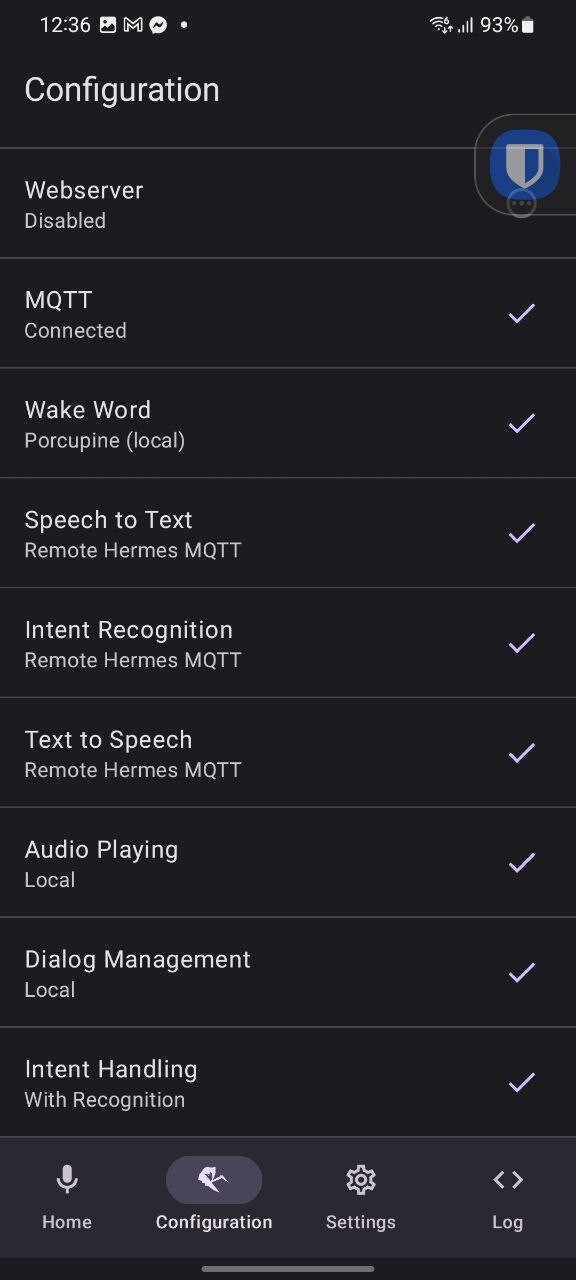
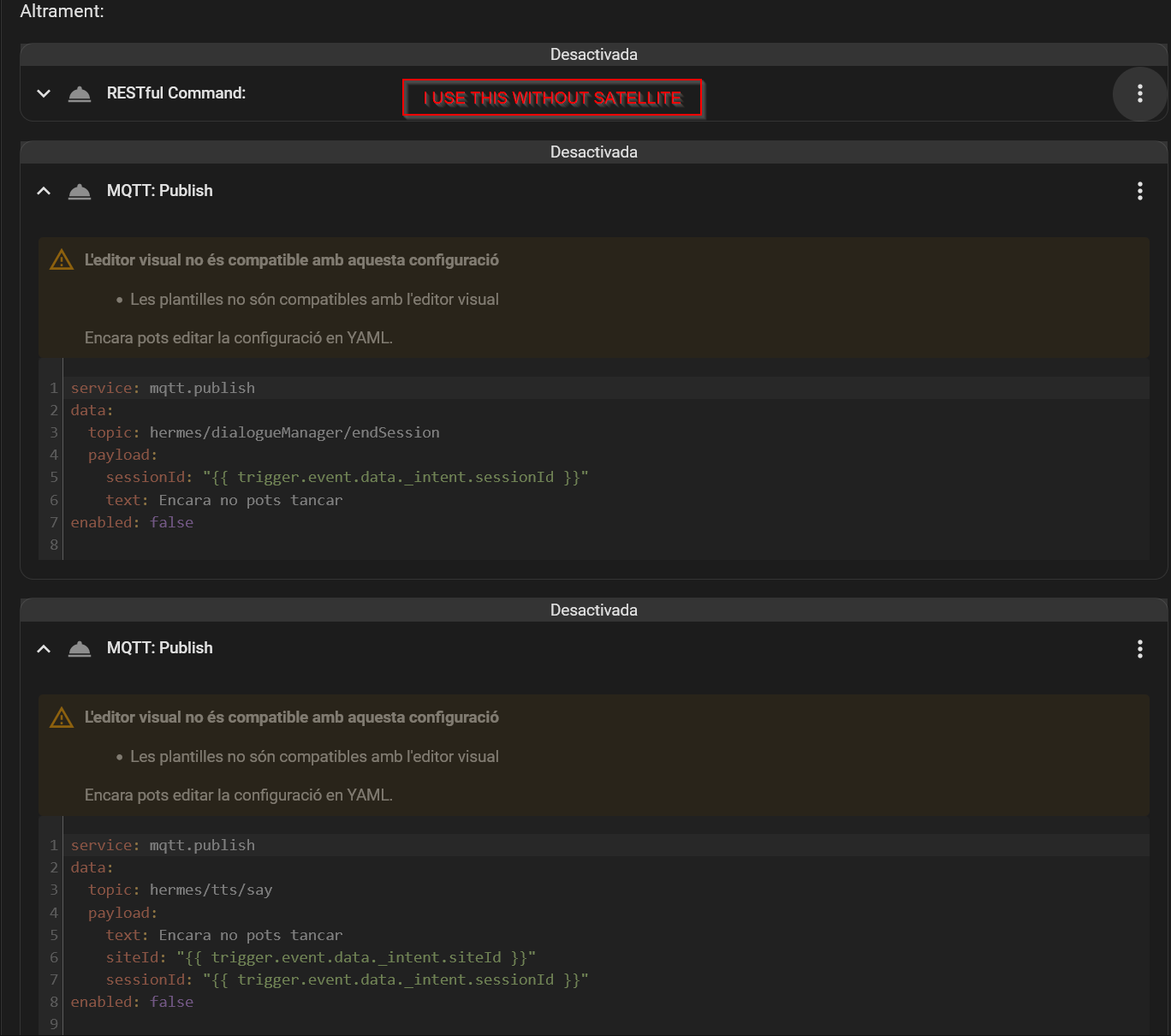
I also noted that the MQTT Text to speech doesn’t seem to work, I get no answer on the phone when I test it out. But besides that, it seems to work!
Edit 2: the listening is pretty spotty, sometimes it closes fine, if I say “turn off the kitchen lights” but other times it’ll cut short even though I’m still talking, like “turn on the kitchen light full bright” so it only gets the beginning.
I tried without the MQTT slience detection, but then it closes after like a second or two

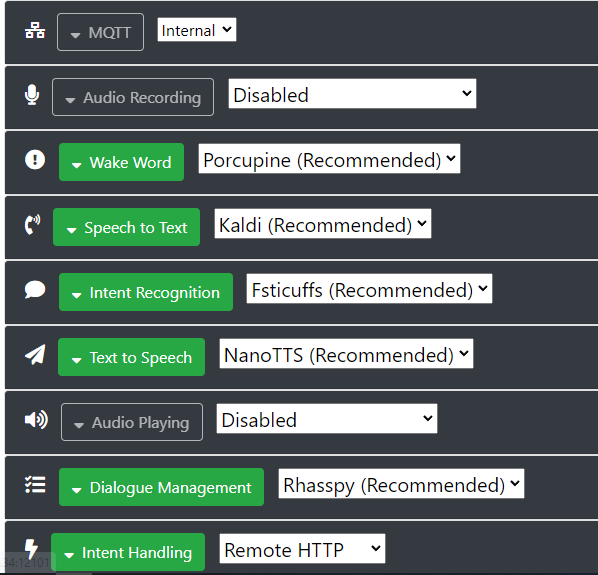
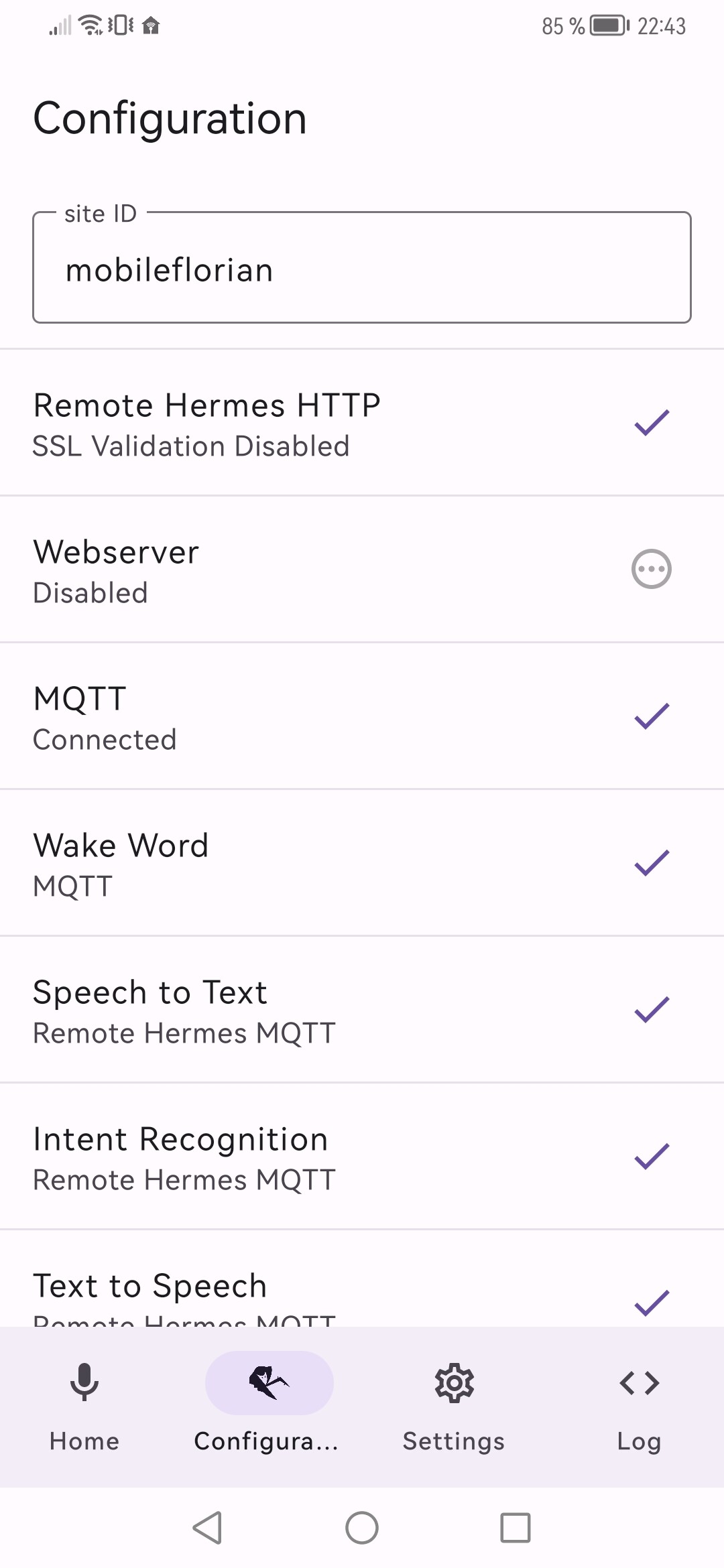
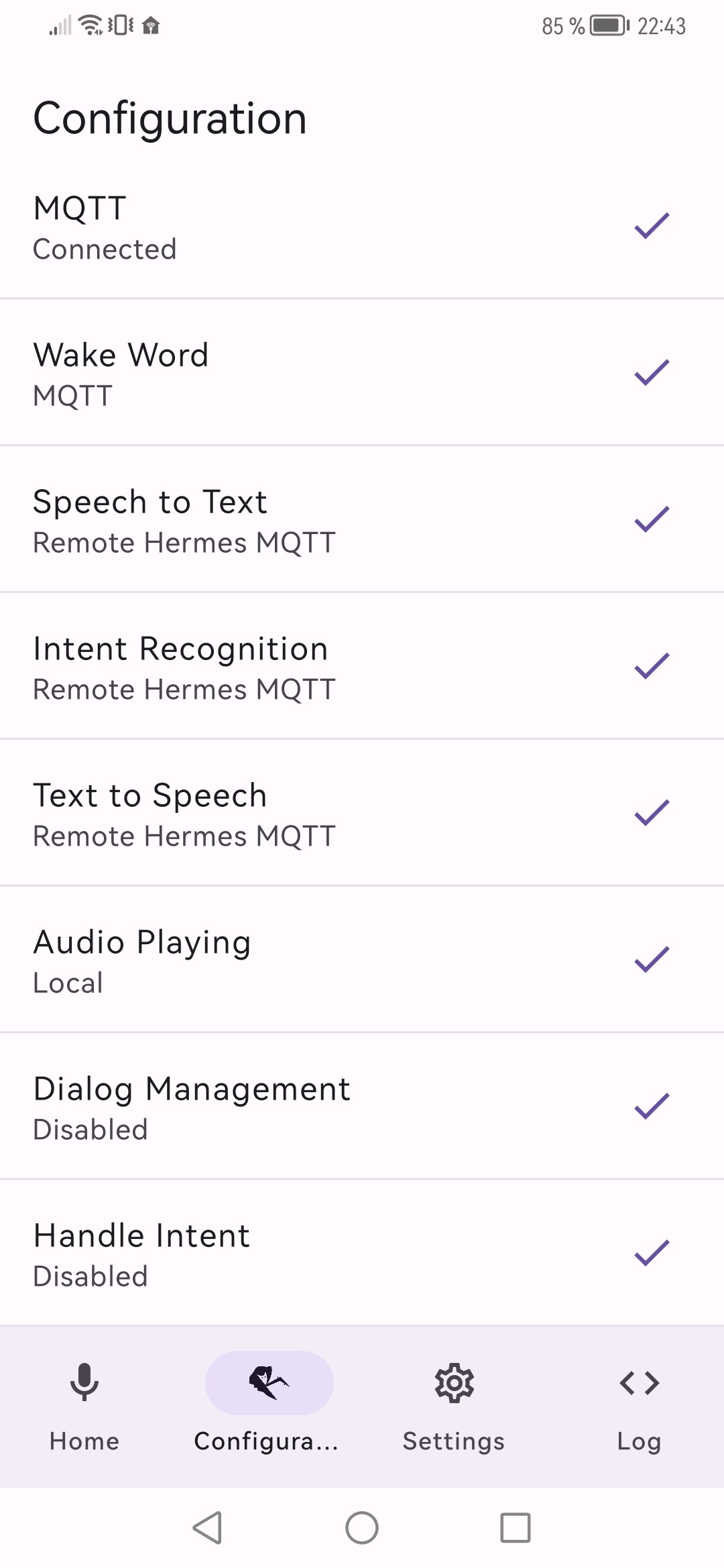

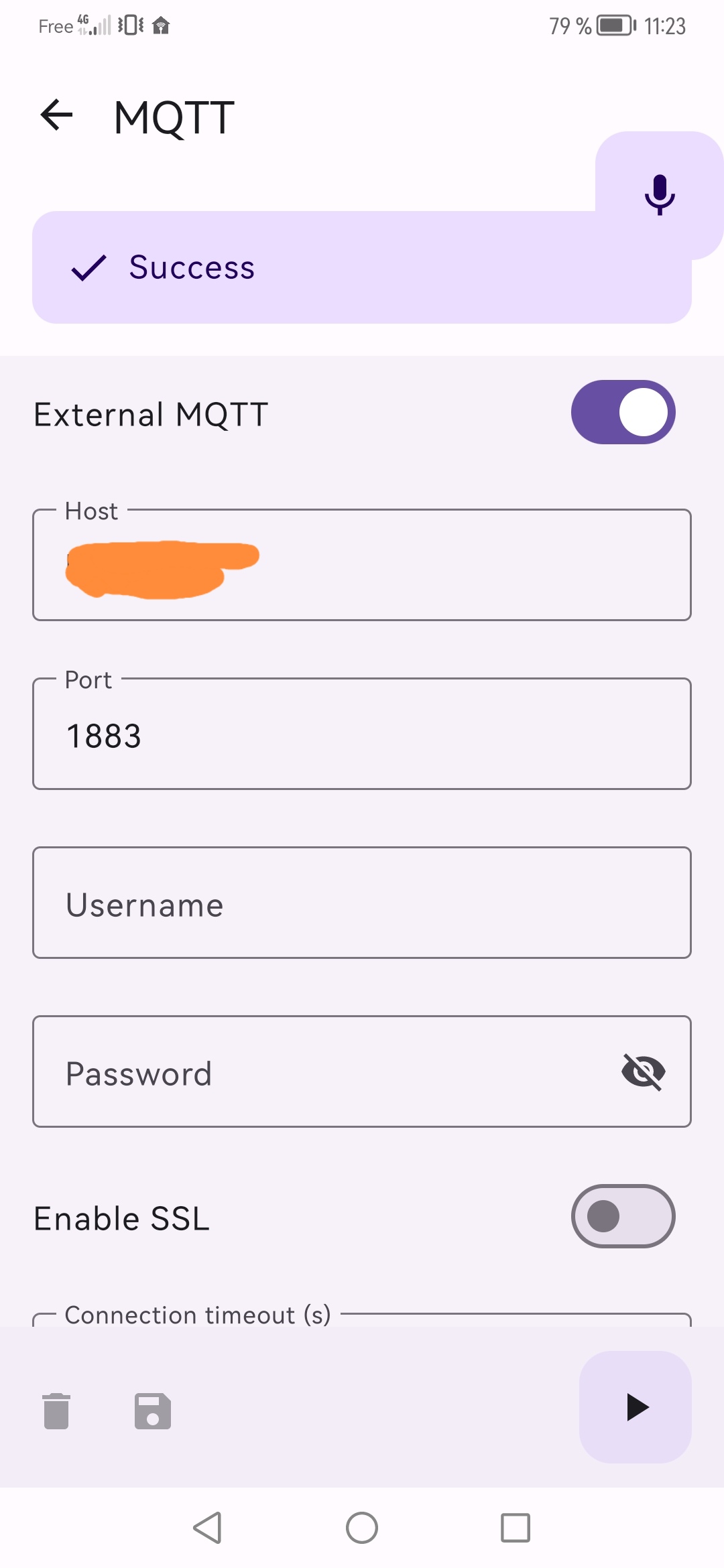





 .
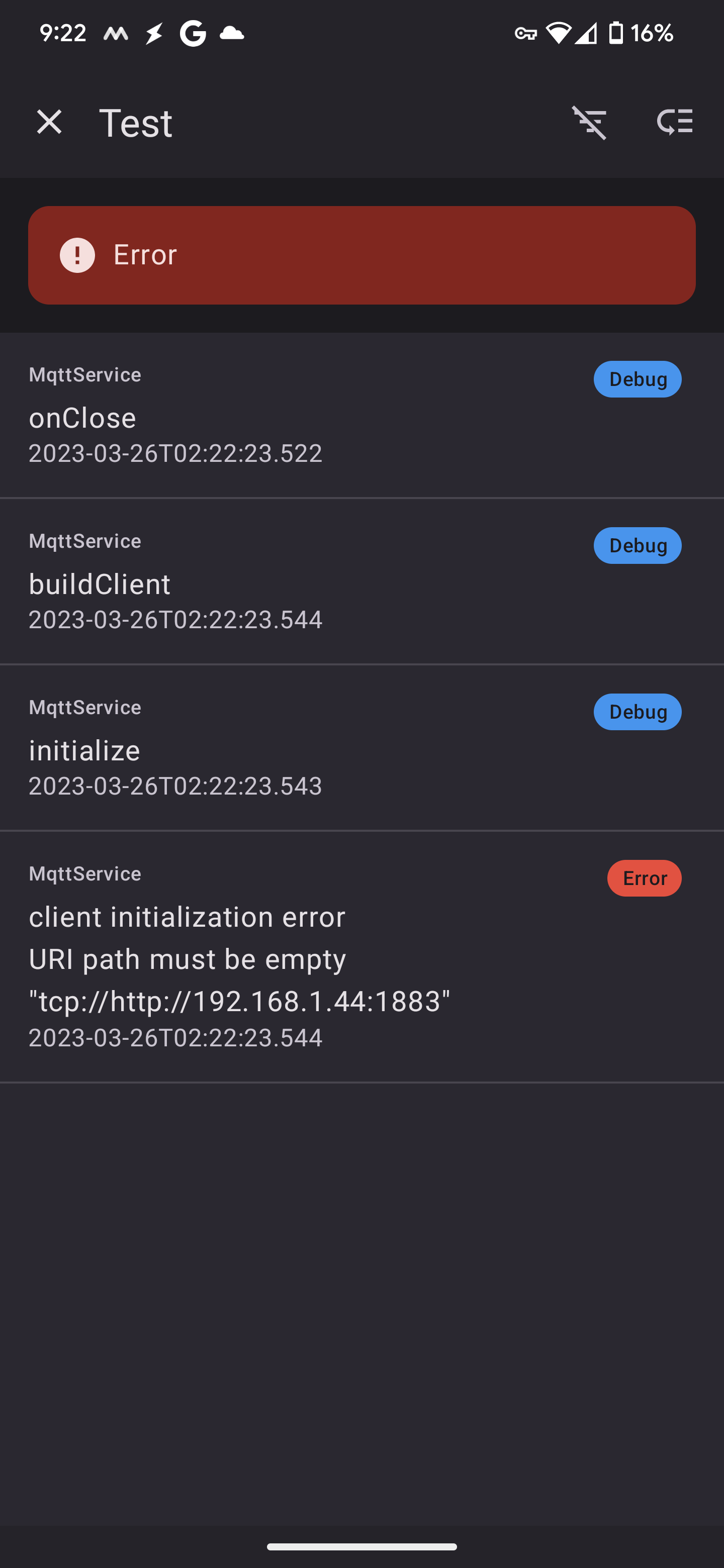
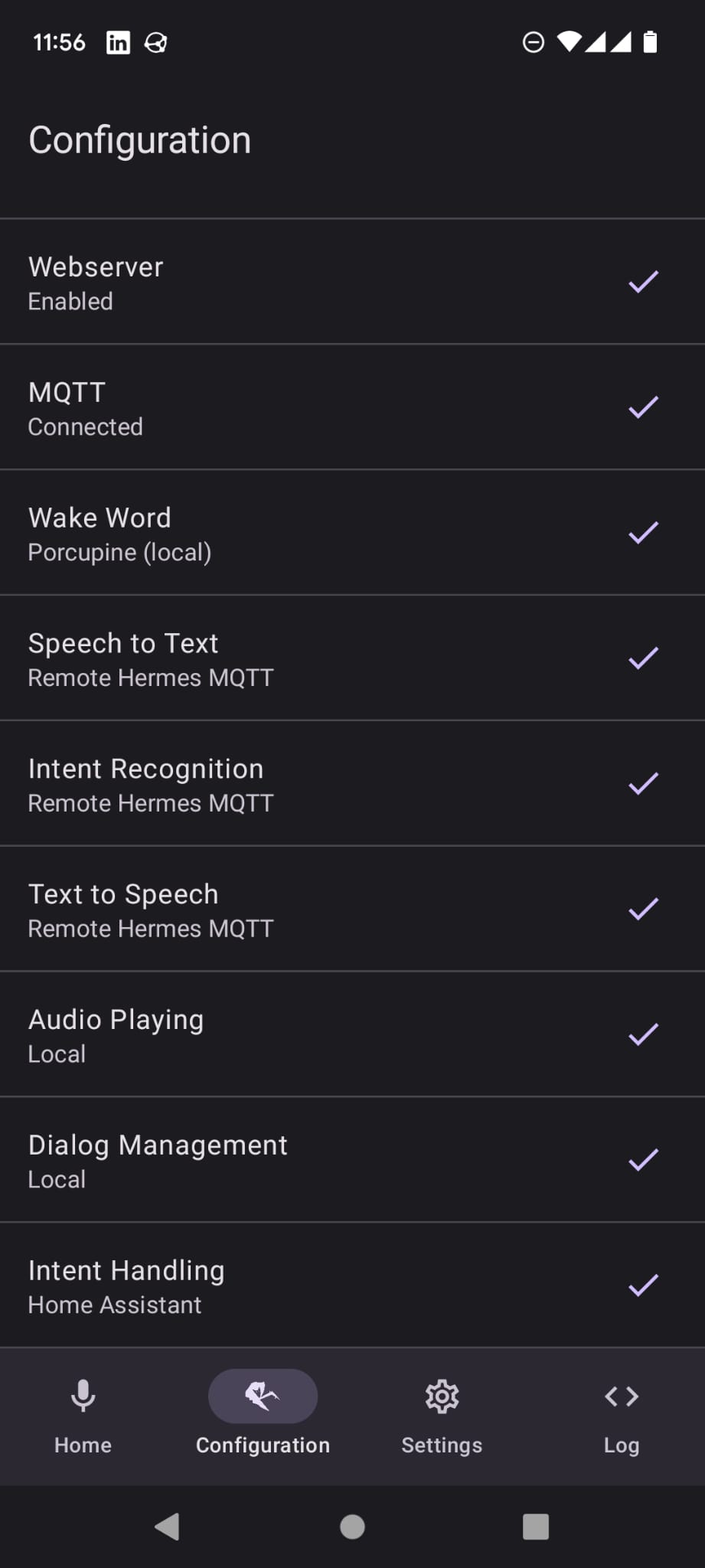
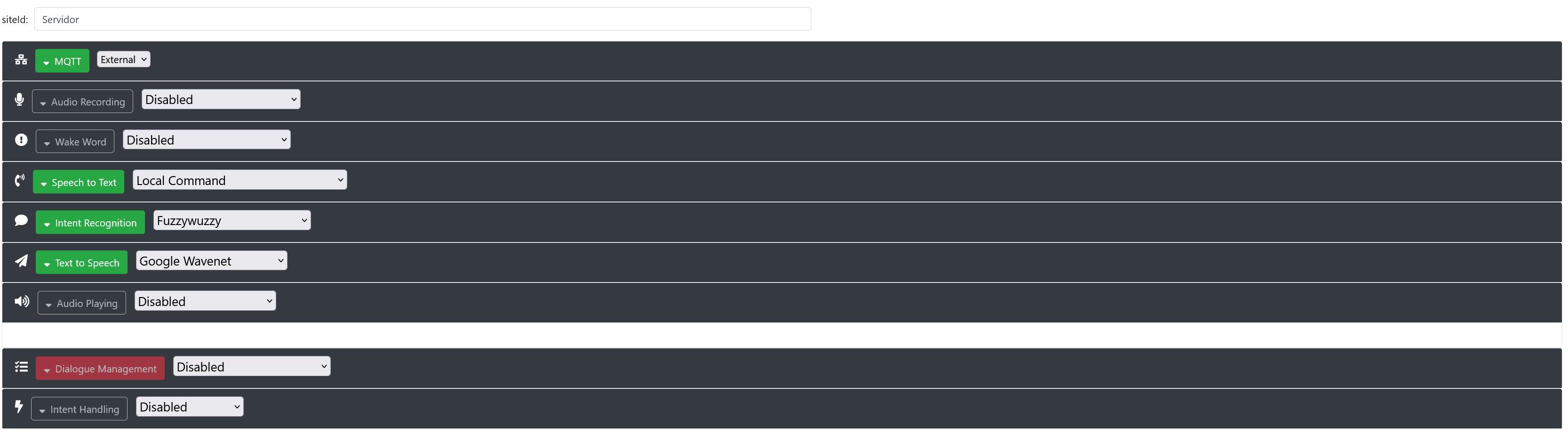
. I’ve actually tried different versions of your app, as well as the old one and, I’d really, really like to use yours, much more elegant of an implementation, but I just can’t get it configured correctly. I’ll be patient, I promise…